Splikit · 2-part split
Split Image in 2 Parts Free
Use Splikit to split image into 2 equal pieces—vertical or horizontal—without an account. Ideal for before/after posts, diptych prints, and product comparisons.
Drag & drop an image
Supports JPG, PNG, WebP, GIF, BMP, AVIF formats
Drop · browse · paste
Settings
LiveRelated
What does it mean to split image in 2 parts?
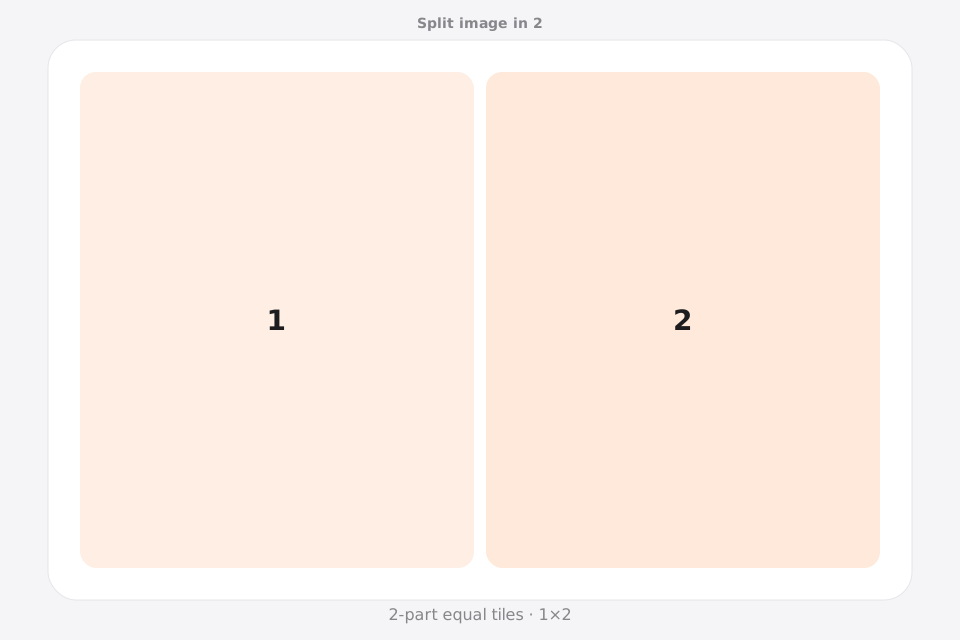
When you split image in 2 parts, one photo becomes two equal files. A 1×2 layout cuts left/right; a 2×1 layout cuts top/bottom. Creators use this image splitter path for before/after, diptych wall art, and clean dual-panel storytelling.
Splikit runs the split image job in your browser. You keep privacy, get numbered downloads, and can switch between horizontal and vertical halves without installing software.
Prefer another count? Jump to 2, 3, 4, 6, 9, or 12 parts—or the full image splitter.
Choose left/right or top/bottom halves
Choose the cut direction before you split image in 2. A 1×2 layout creates left and right halves; a 2×1 layout creates top and bottom halves. The right choice follows the source composition, not the screen orientation alone.
1×2: left and right
Use a single row with two columns for before/after comparisons, wide diptychs, product pairs, and panoramas. Check the vertical center line so it does not cut through a face, logo, or narrow subject.
2×1: top and bottom
Use two rows with one column for tall screenshots, stacked instructions, portrait artwork, or a print pair arranged vertically. Important text should stay clear of the horizontal seam.
When two pieces are not enough
A two-part split image has no middle panel and no grid intersection. Choose three parts for a triptych, four for quadrants, or the printing tool when each output must map to a paper page.
How to split image in 2 parts
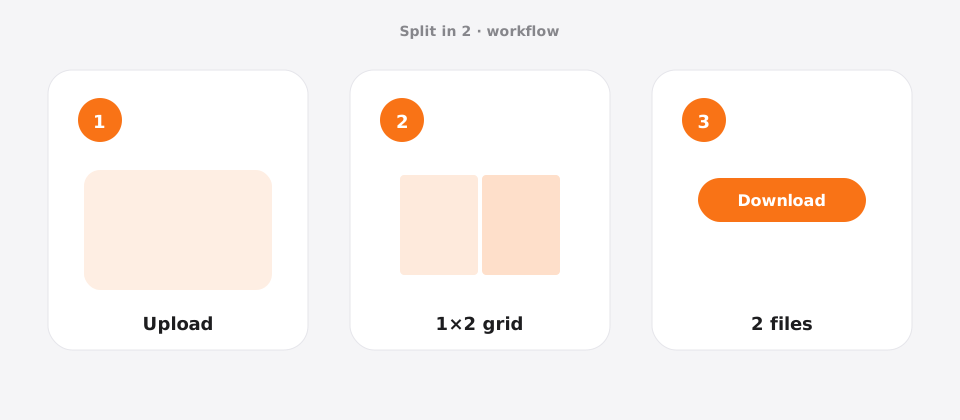
Upload your photo
Add a JPG, PNG, or WebP file to Splikit. The 2-part split image tool accepts common formats up to about 20 MB.
Confirm the grid
Templates: 1×2 (side-by-side) or 2×1 (stacked). Preview updates as you switch allowed templates.
Download numbered pieces
Run Split Image and save all 2 tiles. Numbers help you post or print in the correct order.
Features for a clean 2-part layout
This 2-part route is tuned for diptychs and before/after pairs. Local Canvas processing, PNG/JPG/WebP export, and numbered filenames keep a two-file handoff simple for social or print.
Splikit keeps the same private browser engine across the kit, but this URL’s intent is specifically a 2-part layout—not a general homepage grid and not a multi-page PDF poster workflow. Limits stay honest: about 20 MB sources here; custom rows/columns up to 10×10 live on the full splitter when presets are too narrow.
If you later need quarters, nine-tile profiles, or A4 poster sheets, jump to those dedicated Splikit pages instead of overloading this diptych tool.
Use cases for 2 equal pieces
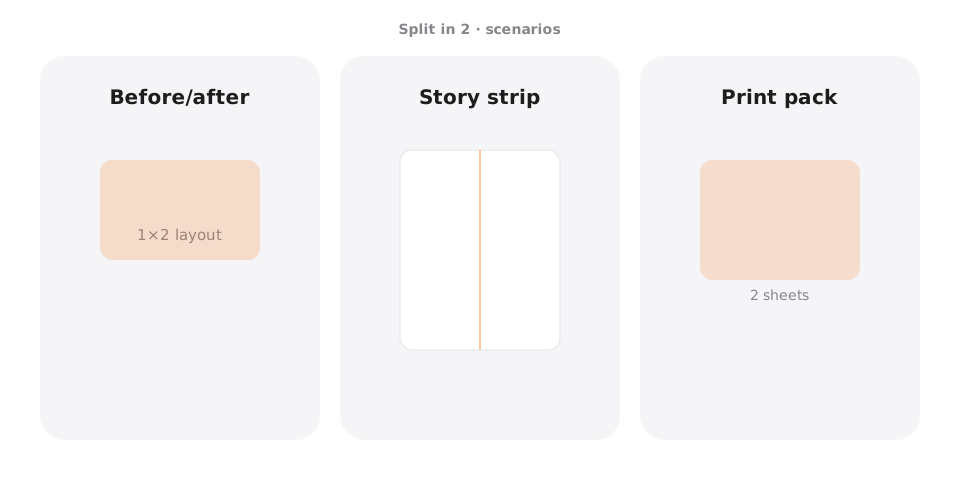
Before / after
Scenario → transformation post · Setting → 1×2 · Output → PNG · Caveat → match lighting across both halves.
Diptych print
Scenario → two matching frames · Setting → 1×2 · Output → high-res PNG · Caveat → leave wall gap between panels.
Product compare
Scenario → two SKUs or colors · Setting → 1×2 · Output → JPG · Caveat → center each product in its half.
Banner halves
Scenario → website split hero · Setting → 2×1 · Output → WebP · Caveat → keep CTA out of the cut line.
Pro tips for a clean 2-part result
- Keep the subject away from the center seam when you cut a photo in half.
- Use PNG for graphics; JPG at high quality for photos.
- For print, start with a high-resolution source so each half stays sharp.
- Name order matters if you later recombine pieces offline.
- If a phone upload fails, save the photo to Files first, then retry the image splitter.
Split image in 2 FAQ
Is split image in 2 parts free on Splikit? +
Yes. You can divide a photo into 2 parts free online with no signup and no watermark. Processing stays in your browser.
Should I choose 1×2 or 2×1 when I split image into 2? +
Use 1×2 for left/right before-after or diptych. Use 2×1 when you want stacked top/bottom panels for tall compositions.
Does this image splitter upload my photo? +
No. The core split image path is local. Your file does not need to leave the device for a standard 2-part cut.
What formats can I export after I split image in 2 parts? +
Export PNG, JPG, or WebP. PNG is safest for text and logos; JPG/WebP shrink photos for sharing.
Can I split image into 2 unequal parts? +
This page locks equal 2-part presets. For custom ratios, open the full Splikit homepage splitter and set custom rows/columns.
How do I print a diptych after I split image online? +
Download both numbered pieces, print on matching paper or canvas, and mount with a small gap between frames for a gallery look.
Is there a size limit for a 2-part job? +
About 20 MB per source image is the practical browser limit. Compress oversized phone photos first if needed.
Can I divide a photo free on mobile into two parts? +
Yes. Open this page on mobile, upload from the gallery, pick 1×2 or 2×1, then download each half. No app install required.
Split image in 2 parts now
Return to the free Splikit image splitter on this page—private, numbered, no signup.
Open the 2-part tool